 Grassroots Technology Support Hub
You can make use of a user guide to help a user get a complete understanding of a feature or a product. For example, this is how a user guide might look for using article template
TABLE OF CONTENTS
Changing details on a user's account
The most common MyAccount ticket we receive is a user requesting to change certain details within their FAN which can all be done within CRM. You will need to find the user on the system either using their full name and date of birth, FAN or email.
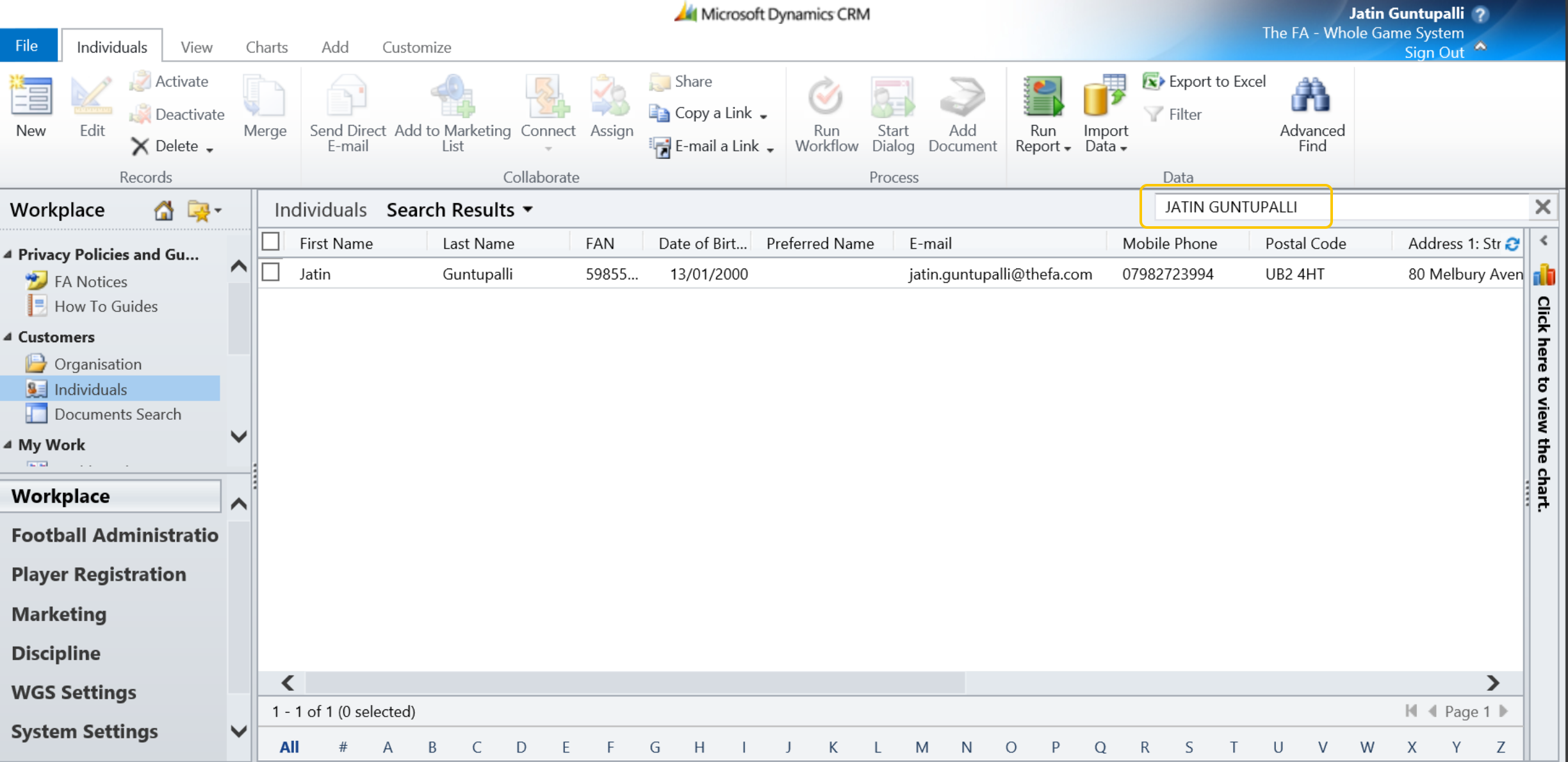
After finding the account - you can amend any of the contact information for the user then snip the changes using windows + shift + R.
"Request is Blocked" Error
Another common error within My Account is when the user is presented with a "the request is blocked" error message when trying to access the website as shown below.
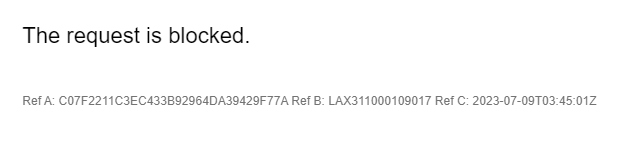
The fix for this is using the canned response /c Request is blocked, or advise the user to use an incognito browser.
Multiple FAN
Sometimes an issue is caused by the user having multiple accounts associated to the same email address. To check this – you can use the advanced find function to search for all accounts (active/inactive) which has the email associated with it as shown below.

There are two methods you can use to remedy the issue:
- If either account is already deactivated then you can change the email address of the inactive account to donotuse@removethis.com , save and deactivate the account with the status as “duplicate” – the user should then be able to clear cookies/cache and remedy the issue.
- If both accounts are active then use the canned response /c FAN Merge then provide the contact link for the County listed in the description.
“Specified email address” Error Message.
The specified email address error is shown to a user when they are trying to log in. This platform is usually is MyAccount, but also sometimes happens on other platforms.
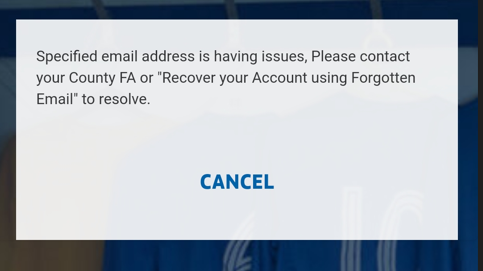
To resolve this issue, there are multiple things we need to check.
- We first need to check on CRM if there are any duplicate emails using advance find.
- If there are 2 active accounts with the same details on, including email address, we need to ask them to do a FAN merge by sending them the canned response ‘FAN Merge’.
- If one account is active and one has been deactivated but shows the email when using ‘Advance find’ you will need to reactive the deactivated account, remove the email address and replace it with donotuse@removethis.com press save and then deactivate the account.
- As well as adding at the end of the message to clear cookies, cache and open the browser up on incognito or private mode.
- Links to do this are Video: https://www.youtube.com/watch?v=RUsouNnVqww
- Written guidance: https://support.google.com/accounts/answer/32050?co=GENIE.Platform%3DDesktop&hl=en
2. If the user comes back and the issue is not resolved. Please can you report the ticket to IT support via the portal.
‘Your email or password do not match’ Error Message
Some users will experience an error message ‘Your email or password do not match’ when trying to log into our platforms.
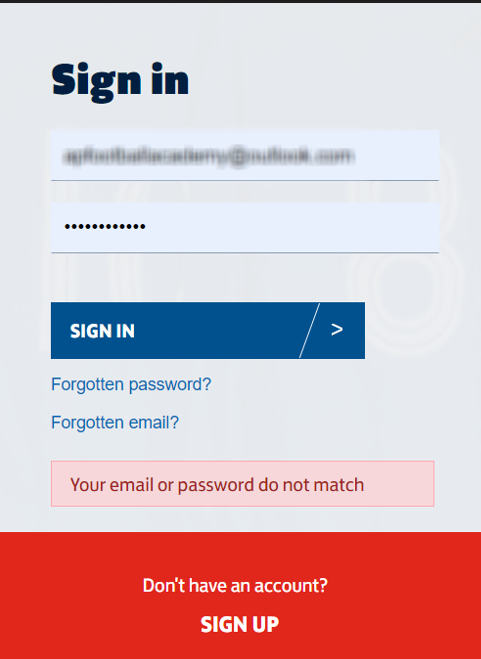
To start, we need to check they are typing in the correct email address. This might be obvious, but it does sometimes happen.
- We need to go to the CRM and find their account to make sure the email address matches up with the one they are trying to log in with.
If the above does not solve the issue, there are a few things we should check.
- Please ask the user if they could check their junk or spam folder in their email inbox. Emails from our system often end up.
- We first need to check on CRM if there are any duplicate emails using advance find.
- If there are 2 active accounts with the same detail, including email address, we need to ask them to do a FAN merge by sending them the canned response ‘FAN Merge’.
- If one account is active and one has been deactivated but shows the email when using ‘Advance find’ You will need to reactive the deactivated account, remove the email address and replace it with donotuse@removethis.com press save, then deactivate the account.
- As well as adding at the end of the message to clear cookies and cache and open the browser up on incognito or private mode.
- Links to do this are Video: https://www.youtube.com/watch?v=RUsouNnVqww
- Written guidance: https://support.google.com/accounts/answer/32050?co=GENIE.Platform%3DDesktop&hl=en
- If this does not work, please ask the user for an alternative email address.
- You will then need to update their email address on the CRM.
- In addition to this, you will need to ask the user to reset their password, using the forgotten password link at the bottom of the login.
- If the user comes back and the issue is not resolved. Please can you report the ticket to IT support via the portal.